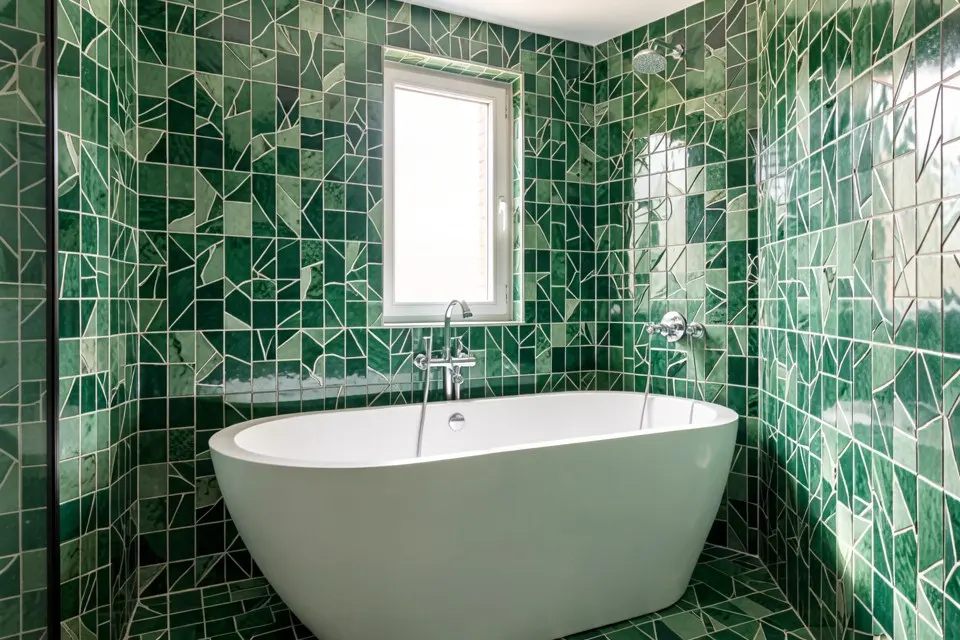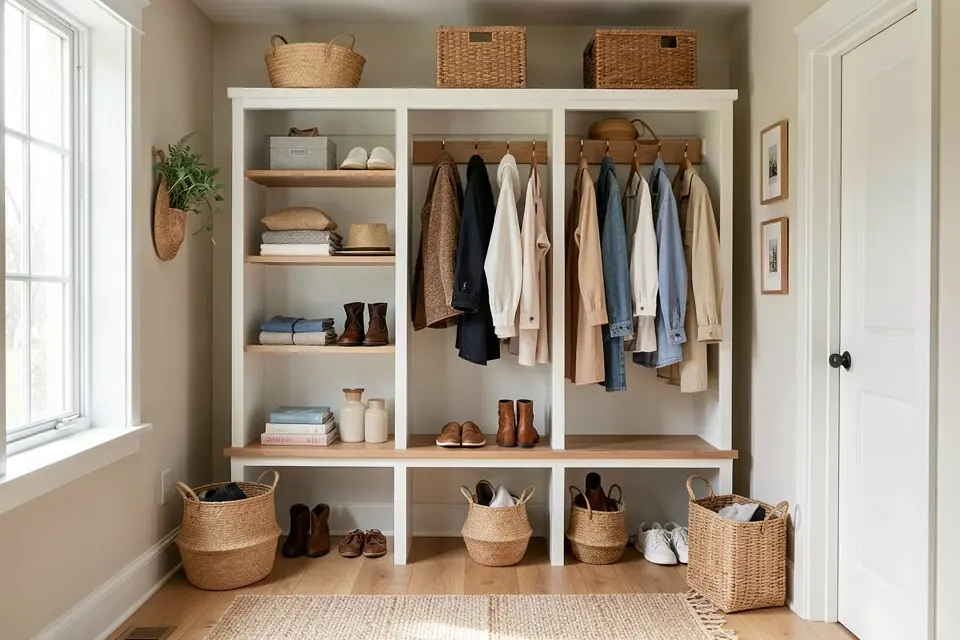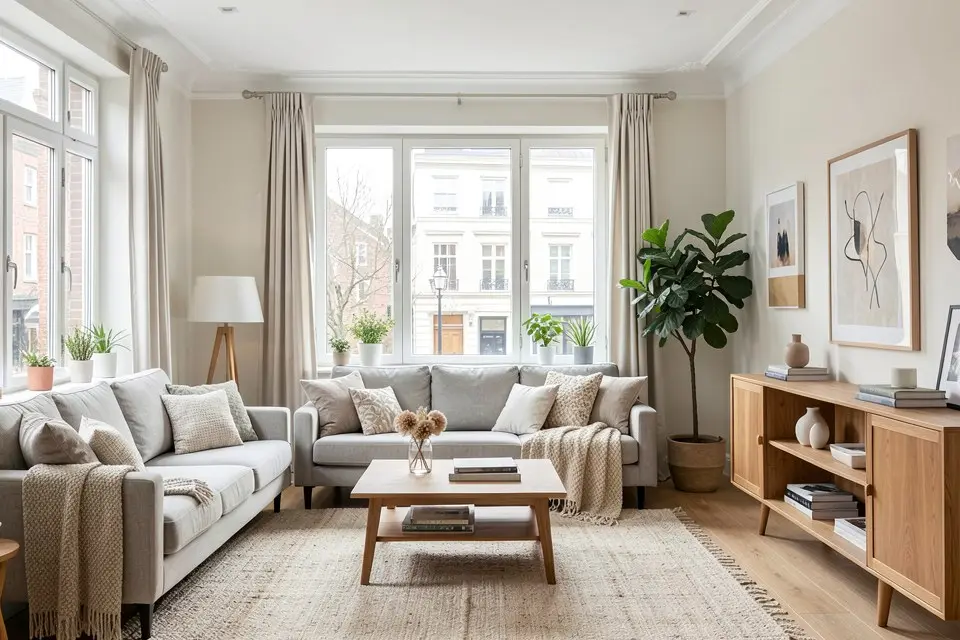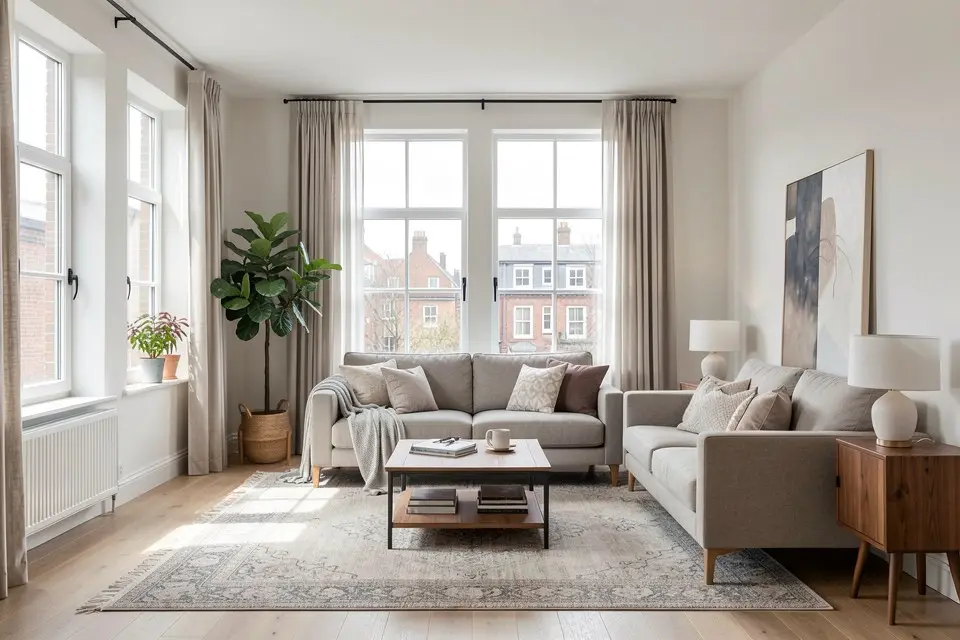
Text to Room builds a room from a written description alone, no photo required, which makes it the only Homie feature you can use before you have a space at all.
Every other Homie skill needs a starting photo: Room Redesign transforms an existing room, Virtual Staging furnishes an empty one, Style Transfer reskins a layout. Text to Room is different. It’s built for the moment you don’t have a room yet, only an idea of one: an apartment you’re about to move into, a spec home still under construction, or a “what if” you want to see before you commit to anything.
When to use it instead of another Homie feature
The decision is really about what you’re holding in your hand.
| You have | Use this |
|---|---|
| A photo of your actual room | Room Redesign or Style Transfer |
| A photo of an empty room | Virtual Staging |
| No photo, just an idea or floor plan | Text to Room |
| A finished redesign you want to test in another style | Style Transfer |
If you already have four walls photographed, feed Homie the photo. You’ll get a result that actually respects your window placement, ceiling height, and door swings. Text to Room has no such anchor, so it invents those details. That’s a feature when you’re dreaming up a small apartment layout before you sign a lease, and a limitation when you need something you can actually shop against.
What makes a good prompt
The model rewards specificity the same way a human illustrator does. A prompt like “a bedroom” gives it almost nothing to work with, so it defaults to the blandest possible interpretation. A prompt like “a 3.5 by 4 meter bedroom with a queen bed against the long wall, a window behind the headboard, warm wood tones, and a Scandinavian style” gives it real constraints to satisfy.
Structure your prompt around four things every time:
- Room type and rough size. “A small home office, about 2.5 by 3 meters.”
- The anchor piece. The one item that has to be in the render and roughly where it sits. “A desk facing the window.”
- Style. Name it. If you’re not sure which style fits, browse a guide like the Scandinavian style guide or mid-century modern guide first and borrow the vocabulary.
- Light. Natural light from a window, a single floor lamp, warm ambient lighting. This affects mood more than almost anything else you can specify.
How to actually do it
- Open Text to Room in Homie.
- Write your prompt using the four-part structure above. Don’t write a paragraph of prose; write a dense, comma-separated description.
- Generate and review. Expect to run it two or three times. Small wording changes shift the output more than you’d expect.
- Once a render is close, note what you’d change and adjust only that part of the prompt rather than rewriting the whole thing.
- When you land on a version you like, treat it as a mood board, not a final plan. Pull the palette and furniture types into your actual planning.
- If you want to price it out, take the render’s furniture list into a furniture budget plan before you buy anything.
Common mistakes
The biggest one is treating the output as a floor plan. It isn’t. Text to Room doesn’t know your actual wall lengths, so the proportions in the render are a guess dressed up as a photo. What AI interior design can and cannot do covers this and the other limits in more depth. If you’re renovating or furnishing a real space, use the render for style direction, then measure your actual room separately.
The second mistake is over-specifying contradictory things: “minimalist” and “maximalist bohemian” in the same prompt produces a muddled result because the model is trying to satisfy two opposing instructions at once. Pick one style and commit to it.
The third is skipping iteration. Because there’s no source photo constraining the output, small prompt tweaks can swing the result a lot. Treat the first generation as a draft, not a verdict.
Where it’s genuinely useful
Text to Room earns its place in three specific situations: pre-move planning when you’ve seen a floor plan but not the finished space (a studio layout is the classic case, since the whole flat fits in one prompt), testing a style direction before committing to a full room makeover on a budget, and pitching an idea to a partner or client who needs to see something rather than imagine it from a description. It’s a starting point generator, not a final-answer tool, and it works best when you treat it that way.
Try it yourself
Open Homie and run Text to Room with a room type, one anchor piece, a named style, and a light source in your prompt. If you already have a photo of the actual space, switch to Room Redesign instead. Text to Room is for before you have the room; everything else is for after.